 Editions ENI Livres | Vidéos | e-Formations
- Espace Professionnels
- Excel 2019 and Office 365 versions - (E/E) : Text in English with the English version of the software
Excel 2019 and Office 365 versions (E/E) : Text in English with the English version of the software

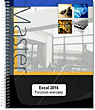
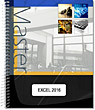
This practical guide provides detailed information about the various functions available in Microsoft's® famous spreadsheet application Excel; it has been written for the 2019 version of Excel, including the features and differences to be found in the version included in Office 365. It is aimed at anyone who wants to explore and familiarise themselves with all its features. You will be introduced to the work environment, how to manage workbooks, templates and spreadsheets, and discover the...
- Niveau Initié à Confirmé
- Nombre de pages 390 pages
- Parution janvier 2020
- Niveau Initié à Confirmé
- Parution janvier 2020
You will be introduced to the work environment, how to manage workbooks, templates and spreadsheets, and discover the techniques you can use to enter and edit data (numbers, dates, data series, flash fill, equations etc.).
You will go on to see how you can carry out all kinds of calculations, from the simplest (percentage, statistics) to the more complex (conditional formula, date calculation, lookup functions, loan repayment table calculation, double input data table, data consolidation, array formulas etc.). There is a special section to deal with analytical tools: creating scenarios, calculating a target value, auditing your worksheets and using the Solver.
Next, you will use the many functions provided to format your tables (fonts, shading, borders, conditional formatting, styles etc.). You will learn to sort and filter your data, organise your tables as outlines and print them.
Excel is a powerful tool for presenting data as charts; you will discover the many different types of chart available: bar charts, histograms, pie charts, 2D and 3D map charts, trendlines and sparklines. You will also find out how to insert graphic objects (shapes, pictures, icons, 3D models, diagrams etc.) into a spreadsheet.
But Excel is also a very powerful data analysis tool: you can create and manage data tables, and create pivot tables which can easily be filtered and/or sorted.
Part of this book is devoted to group work, and so there is a wealth of information about how to protect workbooks and share data, and co-authoring. The last few chapters look at techniques you can use to optimise data entry (creating custom lists and drop-down lists), how to import data, macros, saving a workbook as a Web page and managing your User account.
Caractéristiques
- Reliure spirale - 17 x 21 cm (Médian)
- ISBN : 978-2-409-02226-5
- EAN : 9782409022265
- Ref. ENI : ME19EXC
Caractéristiques
- HTML
- ISBN : 978-2-409-02131-2
- EAN : 9782409021312
- Ref. ENI : LNME19EXC
Téléchargements
Environment
- Starting Excel 2019
- Leaving Excel 2019
- Using/managing the ribbon
- Introducing the File tab
- Undoing the most recent commands
- Redoing the last cancelled commands
- Repeating the last command
- Using Help
- Intuitive help
- Help tab
Views
- Changing the display mode
- Normal view
- Page Layout view
- Page Break Preview
- Optimising the display
- Activating/deactivating the Touch/Mouse Mode
- Modifying the formula bar display
- Displaying/hiding gridlines, row and column headers
- Changing the zoom setting
- Activating one or more windows
- Viewing a workbook in two different windows
- Arranging the window view
- Displaying/hiding a window
- Freezing/unfreezing rows or columns
- Splitting a window into several panes
Workbooks
- Creating a new workbook
- Creating a workbook from a template
- Creating a workbook from a suggested template
- Creating a workbook from a custom template
- Look for a template online
- Creating a custom template
- Opening a workbook
- Saving a workbook
- Saving a new workbook
- Saving an existing workbook
- Using the OneDrive online storage area
- The advantages of using OneDrive
- To save a file (Excel 2019)
- To save a file (Excel Office 365)
- Opening a file saved to OneDrive
- Using Excel 2019 workbooks in previous versions
- Checking the compatibility of a workbook
- Saving a workbook in Excel 97-2003 format
- Using workbooks from pre-2007 versions of Excel
- Working in compatibility mode in Excel 2019
- Converting a workbook to Excel 2019 format
- Saving a workbook in PDF or XPS format
- Displaying/editing workbook properties
- Managing advanced properties
- Comparing two workbooks side-by-side
- Closing a workbook
- Choosing the default working folder
- Managing settings for automatic workbook recovery
- Recovering a previous version of a file
- Recovering a workbook which has been saved at leastonce
- Recovering a workbook which has not been saved
- Sending a workbook by e-mail
- Using the accessibility checker
Movement/selection
- Moving around in a worksheet
- Accessing a particular cell
- Searching for a cell
- By contents
- By format
- Selecting cells
- Adjacent cells
- Non-adjacent cells
- Selecting rows/columns
- Selecting cells by content
Data entry and editing
- Entering constant data (text, values, etc.)
- Inserting special characters
- Inserting the system date/time in a cell
- Using the AutoComplete feature
- Using Flash Fill to complete a column
- To activate/deactivate the function
- Filling a column using the contents of several columns
- Achieving consistent formatting of data
- Splitting one column into several columns
- Managing Flash Filled data
- Entering the same data in several cells
- Creating line breaks in a cell
- Creating a line break
- Defining an automatic line break
- Creating series of data
- Creating a simple series
- Creating a complex series
- Using the fill handle
- Using the dialogue box
- Inserting a preset equation
- Creating an equation
- Creating a handwritten equation
- Replacing text
- Replacing formatting
Copying and moving
- Copying into adjacent cells
- Copying and moving cells
- Using drag-and-drop
- Using the Clipboard
- Copying cells to other sheets
- Using the Clipboard pane
- Displaying and hiding the Clipboard task pane
- Defining Clipboard pane settings
- Copying/moving multiple items
- Copying a format
- Copying cell content, results and/or formats
- Transposing data as you copy
- Copying Excel data and establishing a link
- Making simple calculations while you copy
- Copying data as a picture
Worksheets
- Activating a worksheet
- Renaming a sheet
- Selecting worksheets
- Changing the colour of the worksheet tabs
- Displaying/hiding a worksheet
- Displaying a background picture in the worksheet
- Moving/copying one or more sheets
- Within the active workbook
- From one workbook to another
- Inserting/adding worksheets
- Deleting worksheets
Rows, columns, cells
- Inserting rows/columns
- Deleting rows/columns
- Modifying the row height/column width
- Adjusting row height and column width
- Inserting empty cells
- Deleting cells
- Moving and inserting cells/rows/columns
- Removing rows containing duplicates
Named areas
- Naming cell range
- First method
- Second method
- Third method
- Managing cell names
- Accessing the Name Manager
- Deleting a name
- Modifying the name applied to a range of cells
- Modifying a name’s cell range
- Selecting a range of cells by name
- Displaying a list of names and associated references
Calculations
- Learning about calculation formulas
- Creating a basic calculation formula
- Creating an absolute cell reference in a formula
- Entering a formula from more than one sheet
- Using calculation functions
- Using AutoComplete to enter a function
- Summing a group of cells
- Using simple statistical functions
- Creating a basic conditional formula
- Creating a nested conditional formula
- Combining the OR and the AND operators in a conditional formula
- Counting cells which meet specific criteria (COUNTIF)
- Calculating the sum of a range which meets a criterion (SUMIF)
- Using named ranges in calculations
- Inserting rows of statistics
Advanced calculations
- Using dates in calculations
- Calculating days
- Combining text with a date
- Calculating the difference between two dates (DATEDIFfunction)
- Calculating the number of workdays or non-workdaysbetween two dates
- Calculating the date after a number of working days
- Calculating public holidays
- Adding up months and years
- Calculating using time
- Calculating times
- Calculating the difference between two times
- Converting times
- Using the LOOKUP function
- Using the new calculation functions
- CONCAT function
- TEXTJOIN function
- MAXIFS and MINIFS functions
- IFS function
- SWITCH function
- Consolidating data
- Creating double entry data tables
- Calculating with array formulas
Scenarios and goals
- Setting a value goal
- Making scenarios
- Creating scenarios
- Running a scenario
Auditing
- Displaying formulas instead of results
- Finding and correcting errors in formulas
- Displaying errors
- Analysing errors in a formula
- Analysing the errors in all formulas
- Evaluating formulas
- Using the Watch Window
- Tracing relationships between formulas and cells
- Showing precedents
- Showing dependent cells
Solver
- Finding and activating the Solver Add-in
- Defining and solving a problem using the Solver
- Show intermediate Solver solutions
Standard formatting
- Modifying the font and/or font size
- Changing the font or the size
- Shrinking character size to fit
- Applying Bold, Underscore and Italics
- Applying more character formats
- Changing character colour
- Using the mini toolbar
- Applying a number format
- Creating a custom format
Data alignment
- Distribute an entry across the height of the row
- Modifying the orientation of cell content
- Aligning cell content
- Indenting cell contents
- Merging cells
- Centring content across several columns
Borders and fills
- Applying cell borders
- Applying preset borders
- Applying more borders
- Drawing borders
- Applying a fill to cells
- Applying a pattern or fill effect to cells
- Applying a pattern to cells
- Applying a fill effect to cells
Conditional formatting
- Applying preset conditional formatting
- Creating a conditional formatting rule
- Creating Data Bar conditional formatting
- Creating a colour scale format
- Creating icon set formatting
- Formatting cells according to their content
- Applying a preset format
- Customising a format
- Remove conditional formatting
- Managing conditional formatting rules
Styles and themes
- Applying a cell style
- Creating a cell style
- Managing existing cell styles
- Applying a table style
- Applying a theme to a workbook
- Customising theme colours
- Modifying the colour set associated with a theme
- Creating a colour set
- Customising theme fonts
- Modifying theme font sets
- Creating a font set
- Choosing theme effects
- Saving a theme
Sorting and Outlines
- Sorting data in a table by the content of one column
- Sorting data by cell or font colour, or icon set
- Sorting table data using several criteria
- Sorting using several content criteria
- Sorting using several colour/icon criteria
- Managing sort criteria
- Using an outline
- Creating an outline automatically
- Creating an outline manually
- Using an outline
- Removing an outline
Filtering data
- Activating/deactivating automatic filtering
- Filtering data by content or formatting
- Filtering by column value
- Filtering using a cell colour, font colour or iconset
- Filtering by active cell content or formatting
- Filtering using custom criteria
- Using data specific filters
- Filtering by a data range (numeric or chronological)
- Filtering by highest and lowest values (numeric filter)
- Filtering using the average value (number filter)
- Using a dynamic filter
- Filtering using several criteria
- Two criteria for the same column
- Several criteria on different columns
- Clearing a filter or all filters
- Creating a complex filter
- Creating a criteria field
- Filtering data using a criteria range
- Copying data from a complex filter
- Filtering an Excel table using slicers
- Generating statistics for data filtered using a criteria range
Page setup
- Modifying page setup options
- Creating a print area
- Inserting/deleting a manual page break
- Repeating lines/columns on each page
- Creating and managing page headers and footers
- Accessing the create/modify header/footerpage
- Inserting a predefined page header or footer
- Inserting a custom page header or footer
- Defining page header and footer options
- Deleting page headers and footers
- Creating a watermark
- Using views
- Creating a view
- Using a view
Printing
- Using print preview
- Printing a workbook/worksheet/selection
Creating charts
- Creating a chart
- Creating a chart from the Quick Analysis tool
- Creating a recommended chart
- Choosing a chart to create
- Managing charts
- Creating a 2D Map Chart
- Activating/deactivating an embedded chart
- Moving a chart
- Switching chart data
- Changing the chart data source
- First method
- Second method
- Adding one or more data series to a chart
- Deleting a chart data series
- Changing the order of the chart data series
- Changing the axis data labels
- Managing chart templates
- Saving a chart as a chart template
- Applying a chart template
- Deleting a chart template
- Creating/deleting sparklines
- Changing a sparkline
Chart options
- Selecting elements in a chart
- Changing the type of chart/data series
- Applying a predefined chart layout
- Applying a layout
- Applying a colour palette
- Displaying/hiding chart elements
- First method
- Second method
- Changing the category axis options
- Axis Options list
- Tick Marks list
- Labels list
- Number list
- Changing the value axis options
- Axis Options list
- Tick Marks list
- Labels list
- Number list
- Adding a secondary vertical axis
- Editing data labels
- Changing the shape of a data label
- Restoring label text
- Applying a quick style to the chart
- First method
- Second method
- Adding a trendline to a chart
- Changing the orientation of text in an element
- Formatting a 3D chart
- Changing the orientation/perspective of a 3D chart
- Modifying a pie chart
- Using Pie of Pie or Bar of Pie charts
- Creating a half-pie chart
- Linking the points in a line chart
Graphic objects
- Creating a graphic object
- Drawing a shape
- Drawing a text box
- Inserting a WordArt object
- Inserting an icon
- Inserting a picture file
- Inserting a 3D model
- From a file
- From the 3D Remix online library
- Adjusting a 3D model
- Inserting a screenshot
- Inserting a diagram (SmartArt)
- Adding bullets to a shape
- Displaying/hiding the Text pane
- Managing diagram shapes
- Creating a new shape
- Modifying the level of a shape
- Deleting a shape
- Moving shapes or pictures in a diagram
- Modifying the general appearance of a diagram
Managing objects
- Selecting objects
- Without the Selection pane
- With the Selection pane
- Managing objects
- Changing the formatting of an object
- Modifying the format of a picture
- Cropping a picture
- Removing the background from a picture
- Changing picture resolution
- Changing the default picture resolution
- Changing the resolution of selected pictures
- Formatting object text
- Without the Format Shape pane
- With the Office Format Shape pane
Excel tables
- Creating an Excel table
- Naming an Excel table
- Resizing an Excel table
- Hiding/displaying table headers
- Adding a row/column to an Excel table
- Selecting rows/columns in an Excel table
- Displaying a totals row in an Excel table
- First method
- Second method
- Creating a calculated column in an Excel table
- Applying a table style to an Excel table
- Converting an Excel table to a data range
- Deleting an Excel table and its data
Pivot Tables
- Choosing a recommended Pivot Table
- Creating a Pivot Table
- Creating a Pivot Table based on more than one table
- Managing fields in a Pivot Table
- Adding/deleting fields
- Rearranging fields
- Inserting a calculated field
- Changing the summary function or custom calculation type on a field
- Using total and subtotal fields
- Filtering a Pivot Table
- The field used for the filter is part of the table
- The field used for the filter is not part of the table
- Filtering a Pivot Table using a segment filter (”slicer”)
- Grouping elements in a Pivot Table
- Grouping by field
- Grouping by selection
- Filtering dates interactively (timeline filter)
- Modifying the layout/presentation of a Pivot Table
- Modifying the format of the Pivot Table
- Modifying the format of a row field
- Modifying the layout and format of the Pivot Table
- Modifying the style of the Pivot Table
- Refreshing Pivot Tables
- Deleting a Pivot Table
PivotChart
- Choosing a recommended PivotChart
- Creating a PivotChart
- Deleting a PivotChart
- Filtering a PivotChart
Protection
- Protecting a workbook with a password
- Protecting workbook elements
- Protecting worksheet cells
- Unlocking a cell range
- Activating worksheet protection
- Authorising cell access for certain users
- Creating and using a digital signature
- Creating a digital signature
- Inserting a digital signature
- Displaying information about a digital signature
- Revalidating a digital signature
- Removing a digital signature from a workbook
Sharing
- Introduction
- Sharing a workbook
- Managing access to a shared workbook
- Creating a sharing link
- Coauthoring a workbook
Optimising data entry
- Creating a custom list
- Modifying/deleting custom lists
- Creating a drop-down list
- Defining acceptable data
- Defining validation criteria
- Circling invalid data
- Adding comments to cells
- Creating a comment
- Displaying comments
- Splitting the content of one cell across several cells
Hyperlink
- Introduction
- Creating a hyperlink
- Creating a link to a new file
- Creating a link to an existing file or a web page
- Creating a link to a place in the workbook
- Creating a link to an e-mail address
- Activating a hyperlink
- Selecting a cell/object without activating the hyperlink
- Changing a hyperlink’s destination
- Editing a hyperlink’s text or graphic object
- Removing a hyperlink
Importing data
- Importing data from an Access database
- Importing data from a web page
- Importing data from a text file
- Refreshing imported data
Macros
- Setting up Excel to use Macros
- Displaying the Developer tab
- Defining macro security
- Recording a macro
- Running a macro
- Assigning a macro to a graphic object
- Modifying a macro
- Deleting a macro
- Saving a workbook containing macros
- Enabling macros in the active workbook
Customising
- Moving the Quick Access toolbar
- Customizing the Quick Access Toolbar
- Adding a command to the Quick Access Toolbar
- Removing a command from the Quick Access toolbar
- Changing the order of commands in the Quick AccessToolbar
- Displaying/hiding ScreenTips
- Customising the status bar
- Customising the Ribbon
- Creating a new tab/group
- To rename a tab or a group
- Adding commands to a custom group
- Removing a tab, custom group or command
- Exporting/importing a custom Ribbon
- Exporting Ribbon and Quick Access Toolbar customisations
- Importing Ribbon and Quick Access Toolbar customisations
Managing accounts
- General information about user accounts
- Adding or signing into an account
- Activating an account
- Changing the Office theme and background
- Adding or removing a service
- Managing Office software updates
Keyboard shortcuts
- Keyboard shortcuts
- Find/Replace
- Insert
- Show row/column
- Macro
- Calculations and formulas
- Special entries
- Formula bar
- Cell format
- Number and date format
- Go to
- Selection
- Layout mode